The Future of Productivity, that’s what Microsoft said before launching the Moment 6 update, while power users and gamers started calling it a resource hog. The update includes a deeply integrated Recall AI feature that literally indexes every pixel on the screen and consumes CPU cycles, even on high-end NPUs.
Can this get any worse? Well, it certainly can; the deep file explorer integration brings the folder-type sniff test lag, which makes even new PCs feel like they are running on an HDD instead of an SSD.
Here’s Arenaoftech’s Moment 6 Kill-Switch, a surgical script and registry audit to reclaim your performance.
There are two ways to fix these issues: either do it manually yourself, or use our free Win-DEBLOAT tool to fix them all at once.
Method 1 (20-second Fix)
First, let’s see the WIN-DEBLOAT method.
Head to WIN-DEBLOAT.
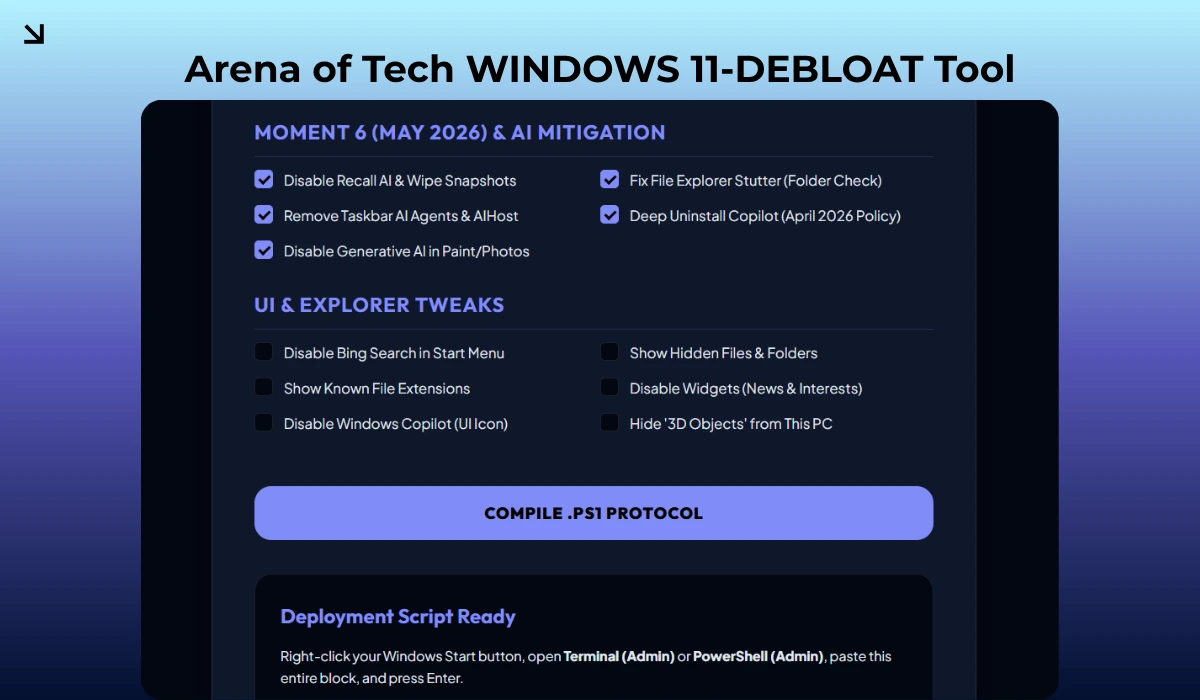
- Uncheck everything on the page.
- Scroll down till the Moment 6 (May 2026) & AI Mitigation Section.
- Make sure that in the Moment 6 section, all options are checked.
- Click on the Compile button below.
- A code will appear in the box.
- Copy and paste it into Windows PowerShell or CMD with admin privileges, then hit Enter.
If you are a power user and want to apply these changes on your own, then just follow the steps below for method 2.
Method 2 (3-Min Fix)
Recall AI Kill-Switch (PowerShell)
This feature is supposed to be an opt-in for users, but many people have reported that Recall AI is auto-initializing after the Moment 6 reboot.
Recall AI takes continuous snapshots of your screen while consuming a good amount of resources.
Let’s get to the point straight. To turn this feature off, copy and paste the code below into PowerShell (Admin) to stop the NPU indexing service immediately.
reg add "HKLM\SOFTWARE\Policies\Microsoft\Windows\WindowsAI" /v AllowRecallEnablement /t REG_DWORD /d 0 /f
reg add "HKCU\Software\Microsoft\Windows\CurrentVersion\Search" /v SearchboxTaskbarMode /t REG_DWORD /d 0 /f
Stop-Service -Name "WindowsAI" -ErrorAction SilentlyContinue
Set-Service -Name "WindowsAI" -StartupType Disabled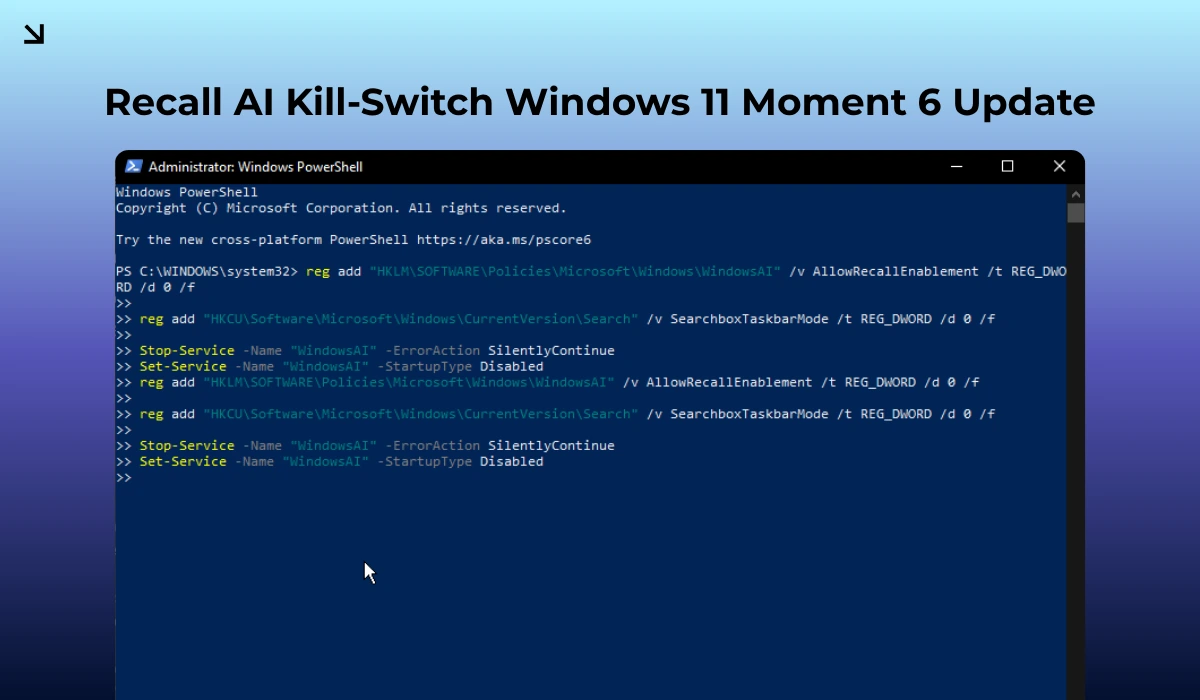
Make sure to reboot your PC after applying these changes, and monitor your optimized RAM usage.
Fix the File Explorer Moment 6 Stutter
Do you remember the notorious Automatic Folder Type Discovery issue? Well, it is back again in the May 2026 update. Every time you open a folder, Windows starts to scan every single file in that folder to decide if it’s a Gallery or Documents view.
Frustrating right? Even on a 2TB NVMe SSD, this causes a 2-second stutter; imagine how much it would put pressure on mid-range and low-end systems. Follow the steps below to fix this.
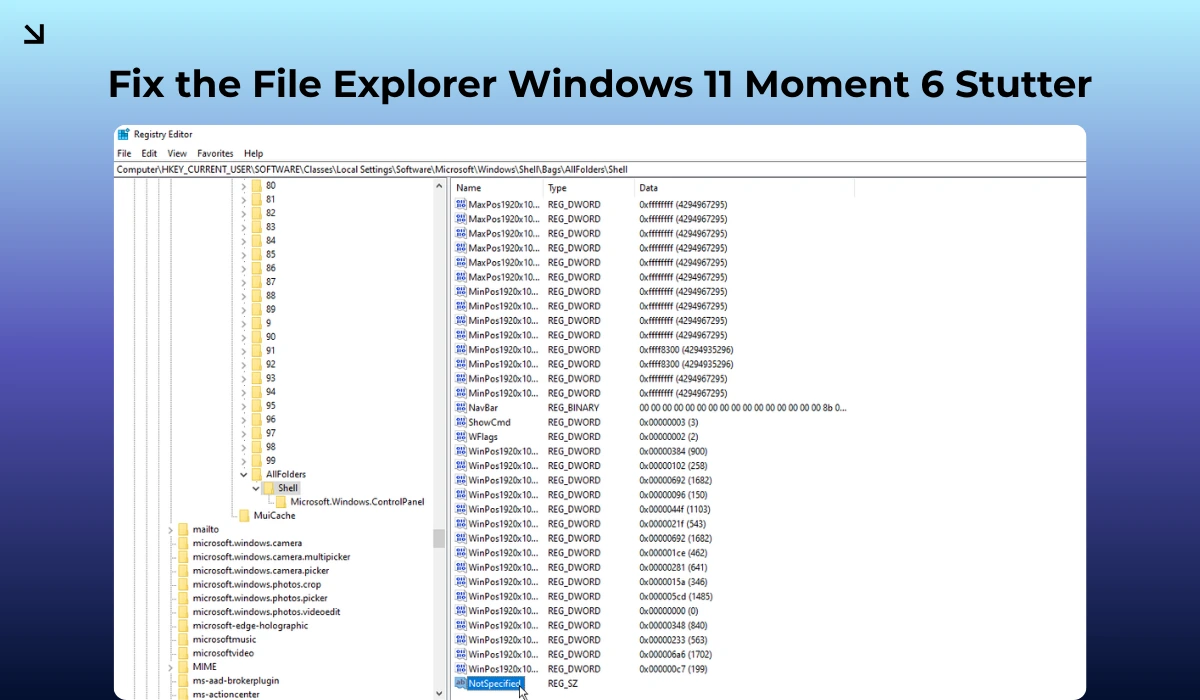
- On your desktop screen, press Win + R, type regedit, and go to:
- HKEY_CURRENT_USER\Software\Classes\Local Settings\Software\Microsoft\Windows\Shell\Bags\AllFolders\Shell
- Right-click > New > String Value.
- Name it FolderType and set the value to NotSpecified.
Restart Explorer. Now, your folders will open instantly because Windows isn’t performing any checks on what’s inside the folder.
Ghost AI Agents (Taskbar Cleanup)
Windows 11 now has AI agents embedded in the taskbar after the update. It doesn’t matter whether you use them or not; the AIHost.exe process will stay active, using your VRAM and anticipating your clicks. Here’s how to turn this off.
- Right-click on the Taskbar > Click on Taskbar Settings.
- Toggle OFF AI Agents and Recall Search.
- Go to Settings > Privacy & Security > Recall & Snapshots and hit Delete All Snapshots. This clears the hidden database that can grow to over 25GB if left unchecked.
Clean with Group Policy Editor (GPEDIT) - Windows 11 Pro
If you are using Windows 11 Education, Enterprise, or Professional (Pro), you have access to the Group Policy Editor (GPEDIT), using which you can permanently turn off these features from the system level, which means they won’t turn on after a minor Windows update.
Recall AI System Block
- Press Win + R, type gpedit.msc, and hit Enter.
- Navigate to: Computer Configuration > Administrative Templates > Windows Components > Windows AI.
- Find Allow Recall to be enabled.
- Double-click it and set it to Disabled.
If you see Disable Saving Snapshots for Windows, set it to Enabled. This kills the NPU indexing service at the root.
Remove the Co-Pilot App (April 2026 Policy)
There’s a specific policy that Microsoft added in the April 2026 update that allows you to remove the Co-Pilot App for managed devices.
- Navigate to: User Configuration > Administrative Templates > Windows AI.
- Find Remove Microsoft Copilot App.
- Set it to Enabled.
Disable AI-Enhanced Creative Tools
To ensure background generative AI services don’t eat up your RAM, follow the steps below.
- Navigate to: Computer Configuration > Administrative Templates > Windows Components > Paint.
- Enable the following: Disable Image Creator, Disable Generative Fill, and Disable Cocreator.
Why are Mid-Range systems performing so poorly?
If you use a mid-range system and its performance has gotten worse after the update, you are not alone. If your system has 16GB of RAM or less, the Moment 6 update is basically your biggest enemy right now.
As you know, not every system has a dedicated NPU, especially Mid-range systems, which are 3-4 years old. Windows reserves a dedicated chunk of your System RAM for the AI index if you don’t have a 40+ TOPS NPU.
After you complete Step 1, your reserved memory will be returned to your apps and games.
Moment 6 Update is great on its own, but only if you are an AI enthusiast. Maybe Microsoft assumes everyone is smart enough to use every feature available in the OS, but for most people, these updates and features are just extra bloat that slows down their systems.
Note: Always back up your registry before running scripts. We’ve tested this on our lab machines (Dell, HP, and Custom Builds), and the performance gain is immediate, especially in File Explorer navigation.