This guide is for our viewers who own a mobile gaming rig, it could be RTX 2060-RTX 4060, or even the GTX 1650. I’m sure we all struggle with thermals sometimes, whether it be due to bad weather or a poorly optimized AAA title.
Some games really do test your laptop thermals; one such game is Starfield, of course. Not long ago, the community had just optimized the game for most systems, and the internet was filled with how-to guides. And then Bethesda just dropped another update, which is more resource-hungry than before.
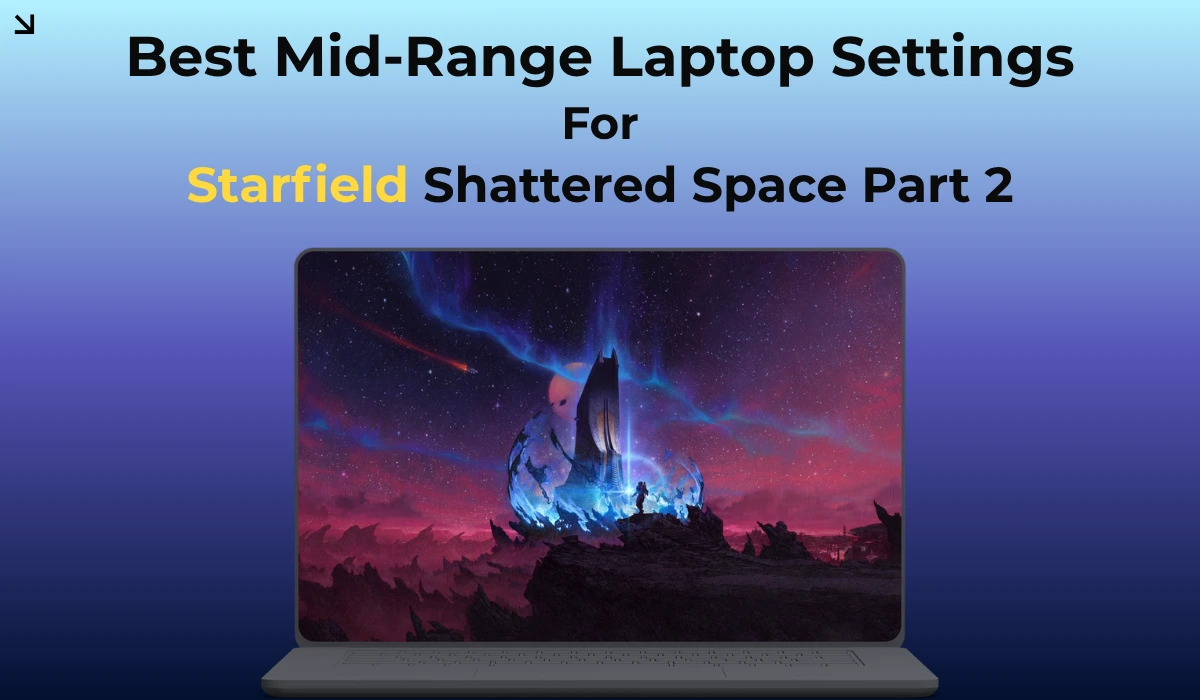
Yes, I am talking about the Starfield Shattered Space Part 2. The update has cranked up the volumetric fog, the planetary physics, and the sub-surface scattering. If you are playing it without optimization, you are literally fighting your thermals, unless you have an RTX 4080 or above.
When your 8GB Video memory or video RAM fills up, it spills over to your system RAM, which overloads your CPU and spikes temperatures to 90°C+, resulting in thermal throttling and underpowering of the system.
Here’s my thoroughly tested guide for 2026 mid-range systems.
Core In-Game Settings
The new environments in Starfield Shattered Space Part 2 rely heavily on dynamic lightning; if you change too many settings, it will ruin the beauty. Follow the steps below for a balanced performance boost.
Set the Shadow quality to Medium, don’t keep it in high, as it will force the CPU to pre-calculate draw pulls, which, of course, stresses out the CPU.
Try to keep the crowd density low; it is notoriously famous for heating up the CPU. In many laptops, the heat sinks for the CPU and the GPU are connected; this could result in higher temperatures for both.
Keep volumetric lightning to low, always. The new atmospheric fog does look amazing when on a desktop with an RTX 5090, but it simply chokes out the laptops when kept at high settings. Keeping it low will render it, but it will put less pressure on your GPU.
How to use Frame Gen efficiently
Frame Gen is a very useful feature in 2026. It is even mandatory in laptops now; however, it is not perfect yet. It also has massive input delay and stuttering if your base framerate is very low.
Make sure you use Frame Gen only when your base framerate is above 35 FPS, and while upscaling, set it to FSR or DLSS as balanced. (or 60% Render Resolution).
If you face stuttering even after setting up frame gen, then try out the trick mentioned below.
- Go to your Nvidia/AMD Radeon control panel.
- Now, cap your max refresh rate to 3 frames below your screen’s refresh rate (e.g., 117 FPS for a 120Hz screen).
- Turn on V-sync from the control panel, but keep V-Sync Off in game settings. This will prevent stuttering & jitters.
Windows 11 MUX Switch & HAGS Check (Rare)
Sometimes Windows 11 sabotages your system resources and forces your game to run in integrated graphics. While it is very rare, it still happens to people. To make sure your laptop isn’t forcing the game through integrated graphics, follow the steps below.
- Go to your laptop’s control center (Armoury Crate, Lenovo Vantage, Alienware Command Center), and set your GPU mode to Ultimate, or dGPU only.
- This will bypass the CPU bottleneck and directly connect your display to your dedicated graphics card.
.webp)
Make sure Hardware-Accelerated GPU Scheduling (HAGS) is turned ON. This will offload your VRAM management from the CPU to the Dedicated GPU.
Head to Windows Settings > System > Display > Graphics > Change default graphics settings.
The .ini Tweak to Stop Thermal Spikes
In 2026, what I feel is that modders have understood one thing: that is, Bethesda won’t fix the new expansion’s heavy terrain rendering, which is nearly impossible to fix from in-game settings.
Here is a custom ini file for Starfield, which will force a limit on background rendering, resulting in a cooler CPU and smoother overall gameplay.
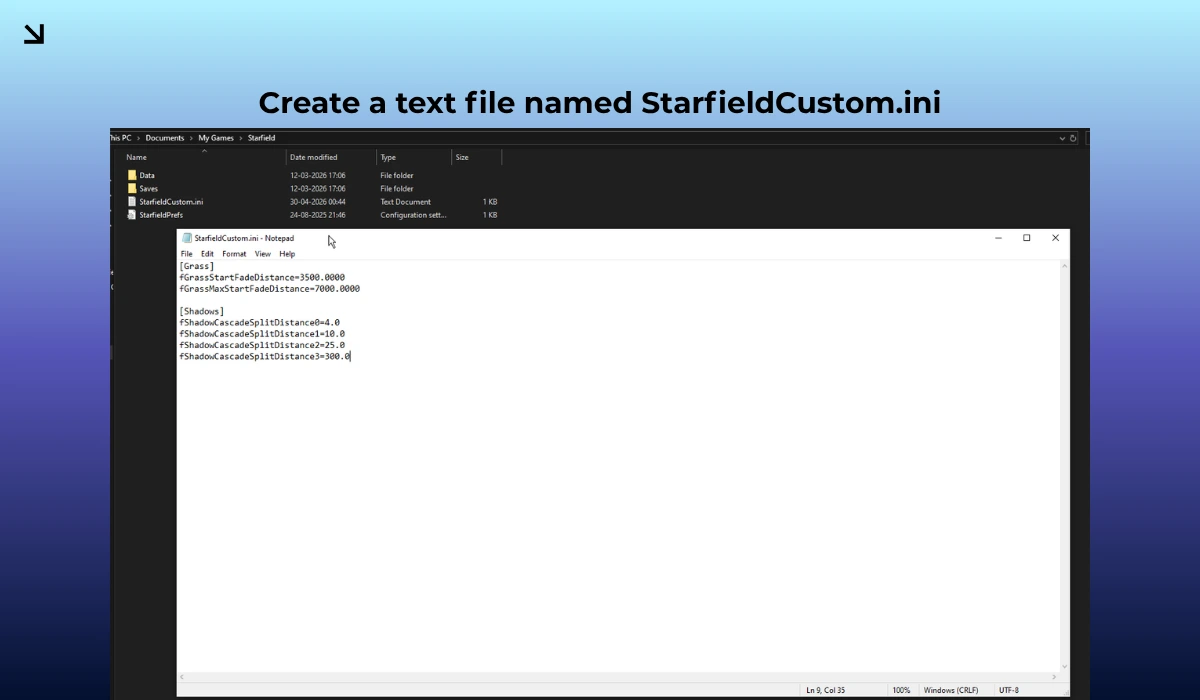
- Go to Documents\My Games\Starfield.
- Create or edit a text file named StarfieldCustom.ini. (If you already have an ini file present in the folder, just copy it to a safe location as a backup)
- Add these exact lines to limit the background rendering that cooks your laptop CPU:
[Grass]
fGrassStartFadeDistance=3500.0000
fGrassMaxStartFadeDistance=7000.0000

[Shadows]
fShadowCascadeSplitDistance0=4.0
fShadowCascadeSplitDistance1=10.0
fShadowCascadeSplitDistance2=25.0
fShadowCascadeSplitDistance3=300.0
It is time you should stop relying on auto-detect, and take manual control over your system if you want smooth gameplay, let it be any title. With the rapid advancement in the gaming industry, it won’t be long till your mid-range system starts suffering and struggling to run the newest games.
Considering how poorly games are optimized these days, you must consider optimizing games for your system yourself, which will give you an upper hand.
Follow arenaoftech for more guides and optimization tips.